One click, then your call
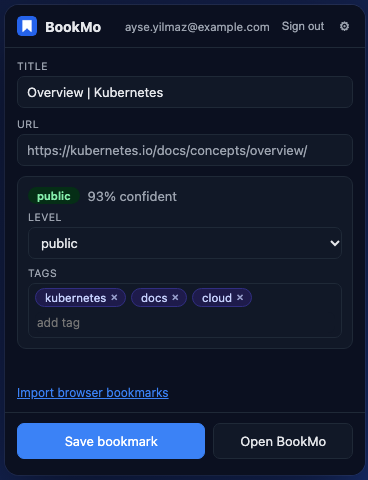
Open BookMo on any page and see its suggested level and tags before you save. Change anything; what you choose always wins.
 BookMo
BookMo bookmarks the page you are on with one click, suggests how confidential it is and what it is about, and keeps everything in one library you can search and filter from any browser.
For Chrome, Firefox and Safari on the Mac.
Safe to share with anyone.
Ordinary business information, not for the outside world.
Customer, personal or sensitive business data.
Regulated data or credentials. Need to know only.
Open BookMo on any page and see its suggested level and tags before you save. Change anything; what you choose always wins.
Connect BookMo to your GPU Pool account and pages are classified by the decision model you chose, on your own credits. In English and Turkish.
No AI access? Bookmarks are saved and wait in Needs review until you give them a level. Set many at once from the dashboard.
Import what is already in your browser, or any bookmarks file. Duplicates are skipped, folder names become tags.
Search titles, addresses and descriptions. Filter by level and tag with one click, several at a time.
Download everything as JSON or as a bookmarks file any browser can import. Nothing is sold or shared with third parties.
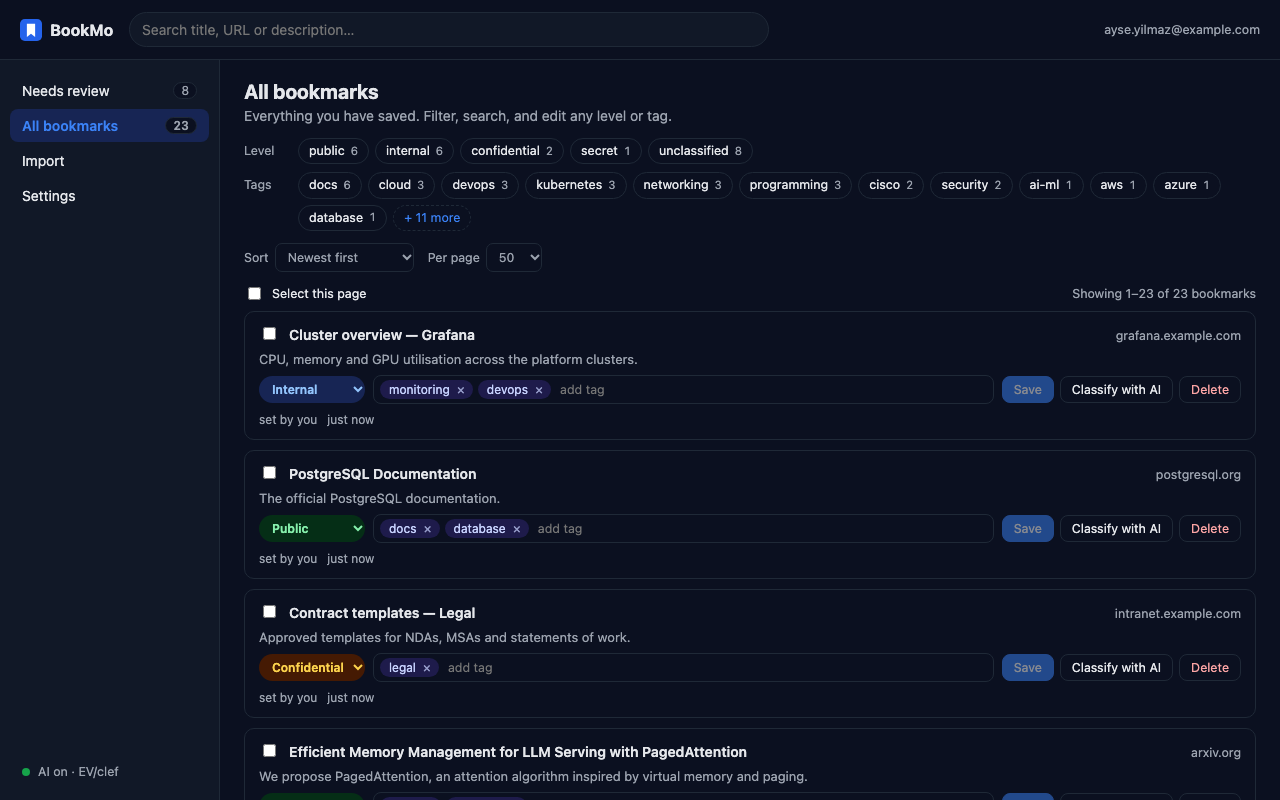
The dashboard shows every bookmark with its level and tags, a review queue, bulk editing, import and export.